View the template scan history of a device
View the history of changes for a device as the result of a template scan and/or remediation. You can also see when and why a scan happened, the various steps that occurred during the scan (firmware, settings, and file checks), and as well as a success or failure message.
There are two ways to see Template Scan History of the device: from the template and from the device's dashboard.
 From the template that controls
-
In the left menu, click Templates.
-
In the list, click the template that controls the device you want to see.
The template wizard displays.
-
Click Scan Results.
Tip If the Scan Results tab is disabled, then the template you chose is not enabled. Enable the template to view the history of changes made to the device.
-
In the device list, click the device ID for the device you want to work with.
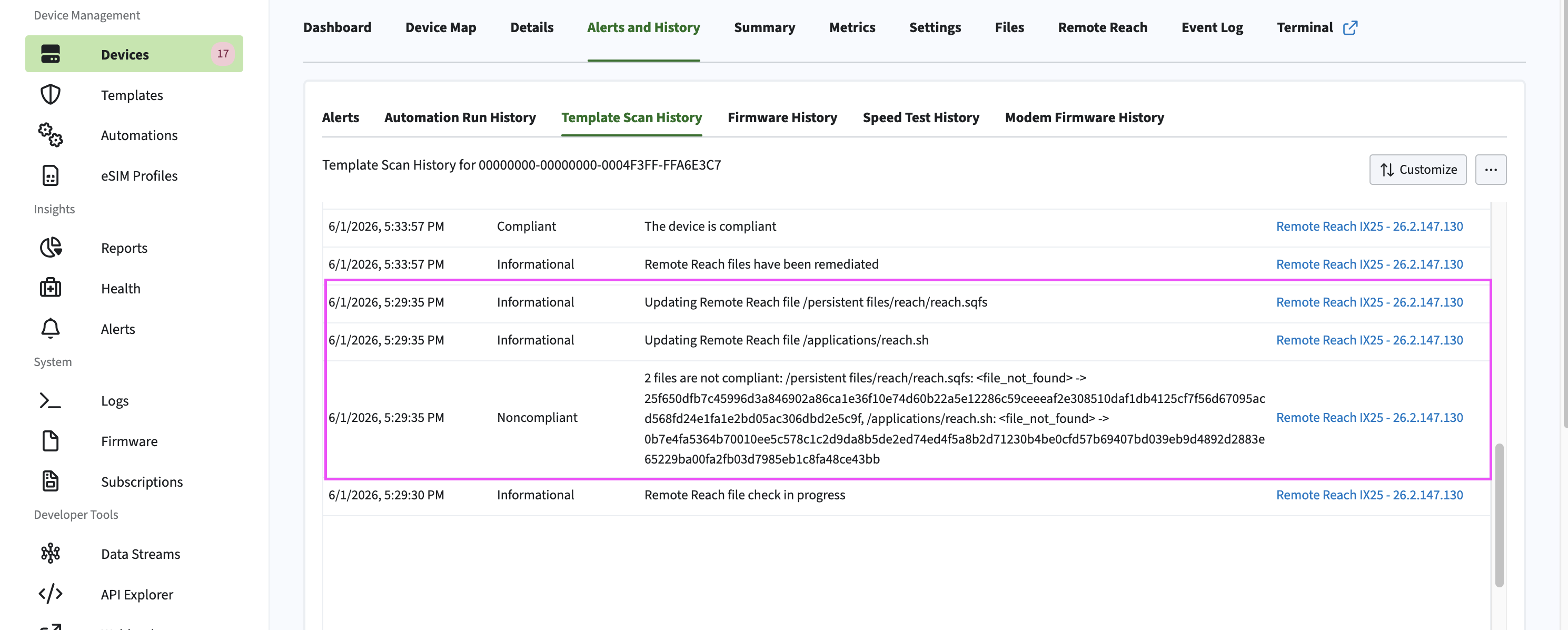
The Template Scan History for that device displays.
From the device's dashboard
-
In the left menu, click Devices.
-
In the list, click the name of the device you want to work with.
-
On the device's dashboard, clock Alerts and History.
-
Click Template Scan History.
The Template Scan History for that device displays.