Export a template
You can export a template from the templates list to save it as a zip file, which can be useful for backup or version history records, sharing with others, offline reviews, source control purposes, or audits.
To export a template to a .zip file:
-
Log in to Digi Remote Manager.
-
In the left navigation menu, click Templates.
 Use the Actions menu
-
In the templates list, select the checkbox for the template you want to work with.
-
Click Actions > Export.
Use the ellipsis menu
-
In the templates list, select the ellipsis for the template you want to work with.
-
Click Export.
-
-
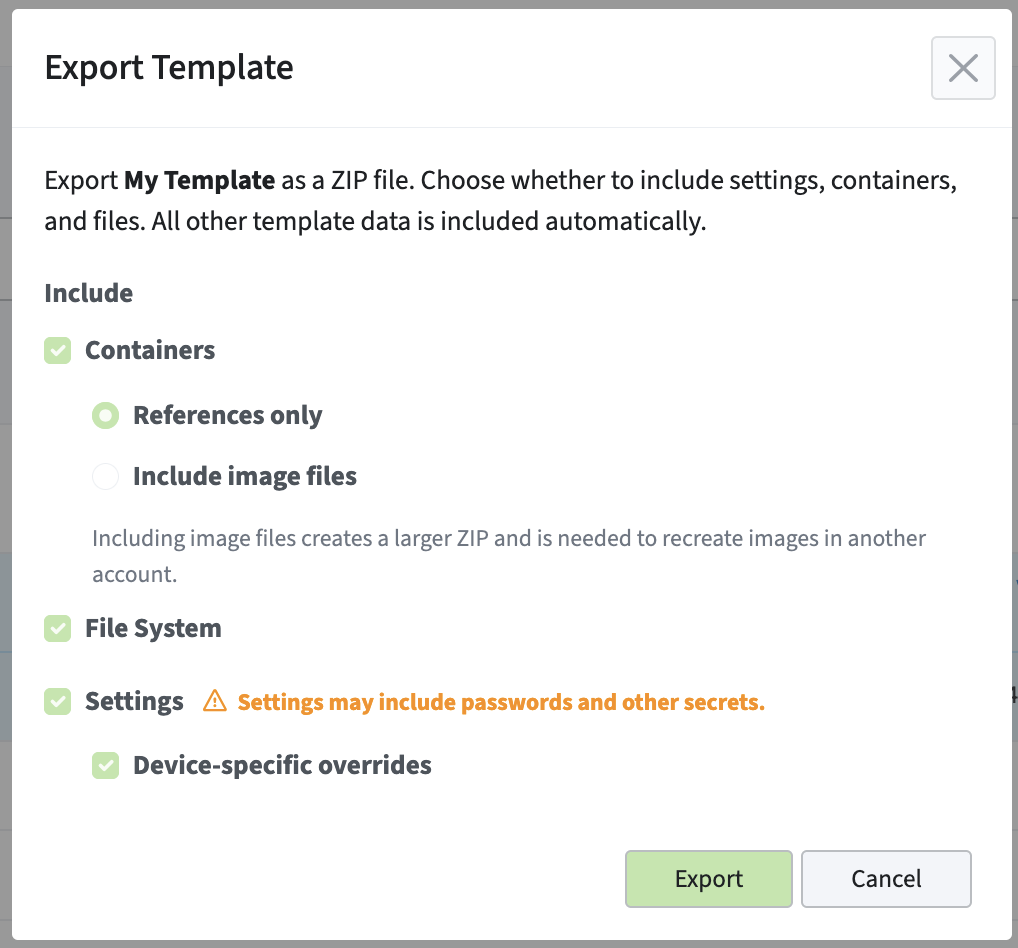
The Export Template window displays. By default, all settings, containers, and files are included in the export.
-
(Optional) Select a checkbox to exclude the settings, containers, or files from being included in the zip file.
-
Click Export.
-
While it is downloading, you will see a status message: Preparing export, this may take a minute….
þ The zip file is downloaded.