Manually initiate a template scan
Your devices are automatically scanned and/or remediated at whatever interval you designate in the template that controls them, but there may be times when you need to scan a device or a group of devices manually.
 Manually start a scan from the template.
-
Click Templates.
-
In the table, select the checkbox for the template that controls the devices you want to scan.
-
Click Actions Scan Now.
A confirmation message appears. The devices are scanned and, if enabled, remediated.
Tip
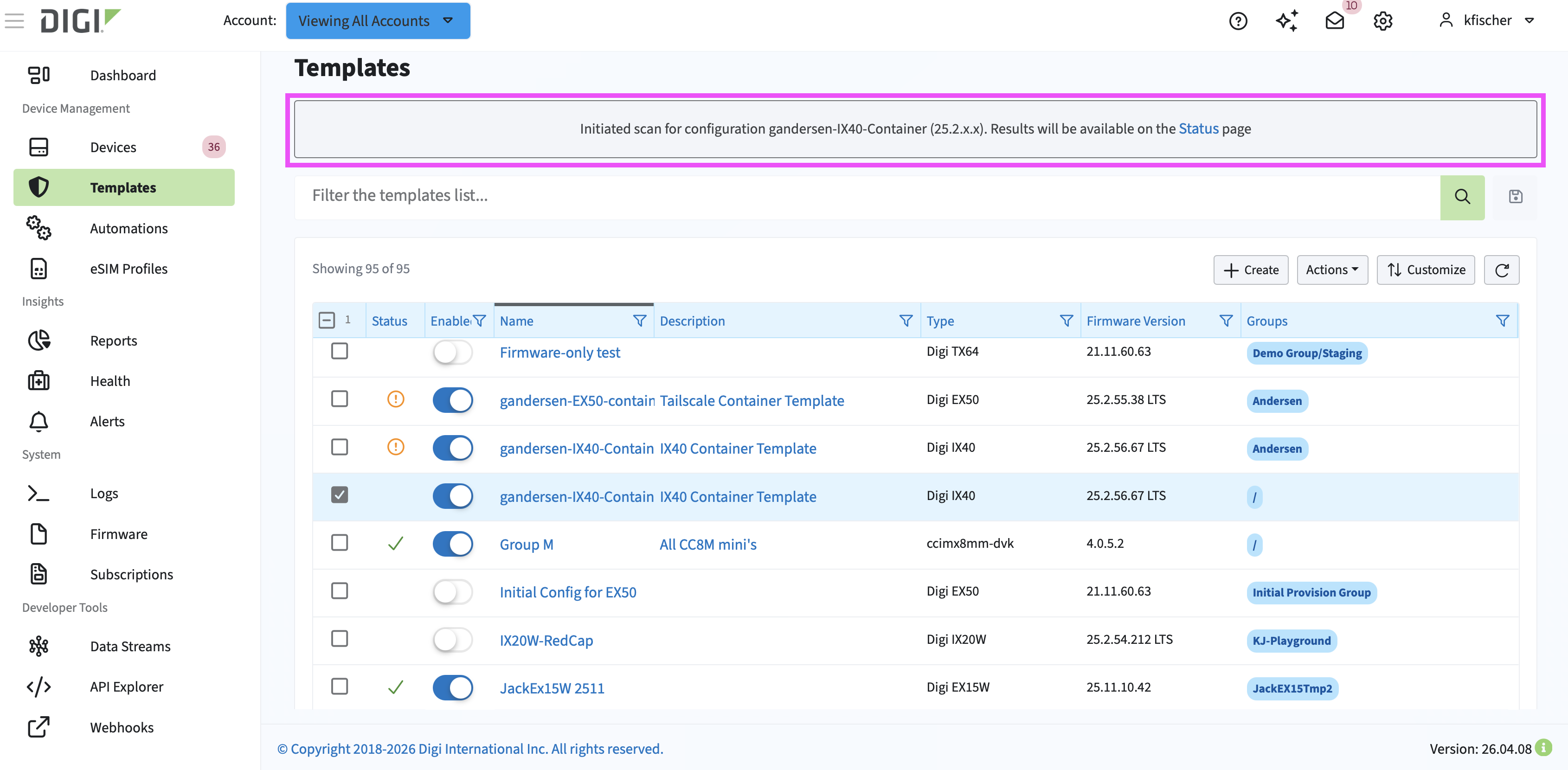 Click Scan Results in the confirmation message. In the devices list, click a device to see the results of the scan.
You can always see the results of a scan for a particular device at any time by using either of the following methods:
-
In the template wizard, click the Scan Results tab. In the devices table, click a device. The Scan History for that device displays.
-
Click Devices, from the list, select the device you want to see, and then click Alerts and History Template Scan History.
-
Manually start a scan on one device from the devices list.
-
Click Devices.
-
In the list, select the checkbox for the device you want to scan.
-
Click Actions Template Scan.
Note If this function is not active, that means the device is not part of a group controlled by a template.
A confirmation message appears. The device is scanned and, if enabled, remediated.
Tip Tip Click Status in the confirmation message. In the device table, click a device to see the results of the scan.
You can always see the results of a scan for a particular device at any time by using either of the following methods:
-
In the template wizard, click the Status tab. In the devices table, click a device. The Scan History for that device displays.
-
Click Devices, from the list, select the device you want to see, and then click Alerts and HistoryTemplate Scan History.
-
Manually start a scan on one device from its dashboard.
-
Click Devices.
-
In the list, in the Name column, click the name of the device you want to scan.
-
On the Dashboard tab, in the Templates card, click Scan Now.
Note If the Scan Now function is not active, that means the device is not part of a group controlled by a template.
A confirmation message appears. The device is scanned and, if enabled, remediated.
Tip Tip Click Status in the confirmation message. In the device table, click a device to see the results of the scan.
You can always see the results of a scan for a particular device at any time by using either of the following methods:
-
In the template wizard, click the Status tab. In the devices table, click a device. The Scan History for that device displays.
-
Click Devices, from the list, select the device you want to see, and then click Alerts and History Template Scan History.
-