About the Subscriptions page in Digi Remote Manager
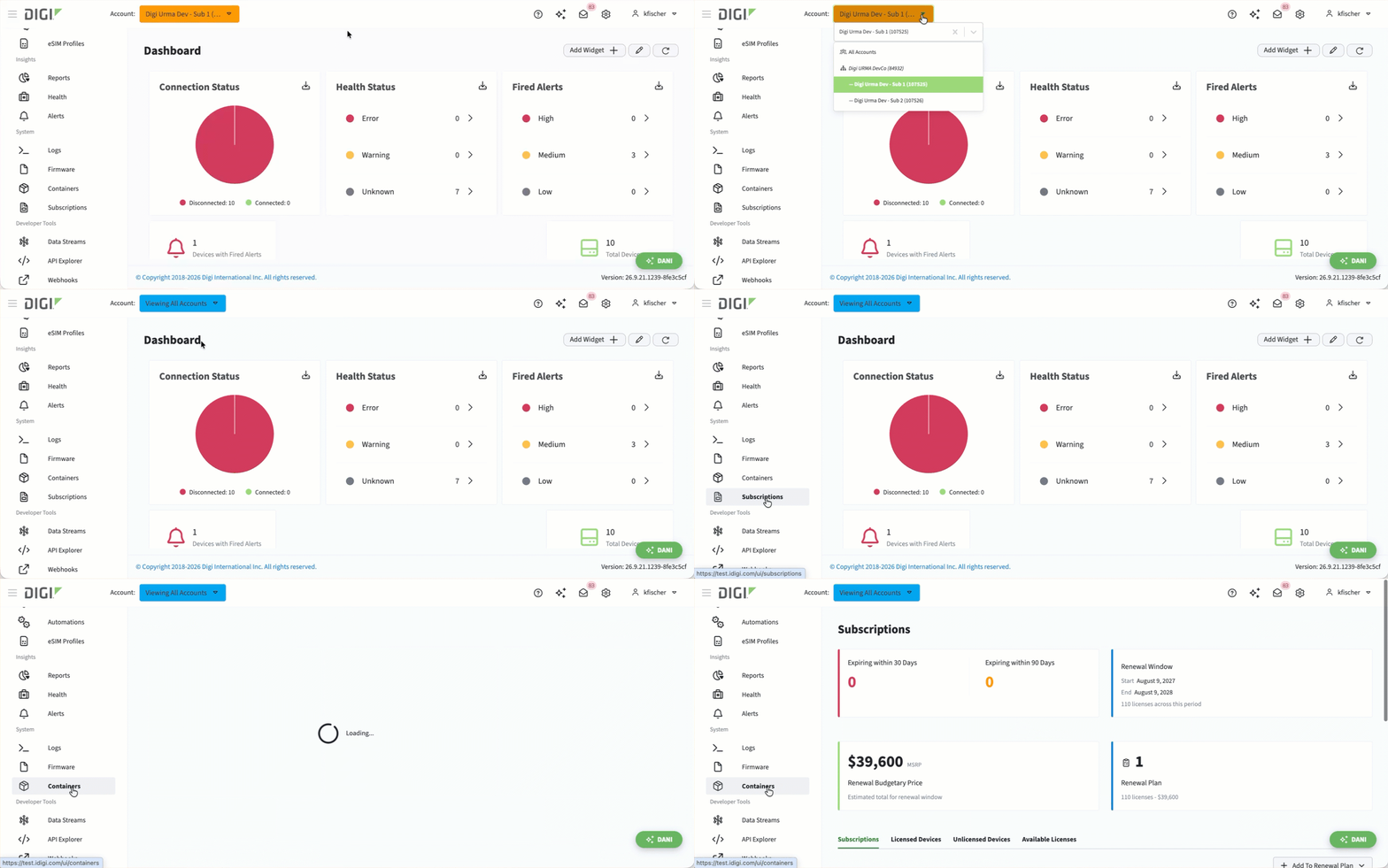 The Subscriptions page in Digi Remote Manager is where you can view and manage all of your subscriptions, for all the accounts you manage. From here, you can manage subscription licenses for both devices (like WAN Bonding) and users (like DANI). The page helps you:
-
Understand which Digi subscriptions you have and how those licenses are distributed in the account.
-
Monitor license consumption and remaining capacity.
-
Identify expired or expiring subscriptions.
-
Plan for renewals, upgrades, and capacity changes.
Summary cards
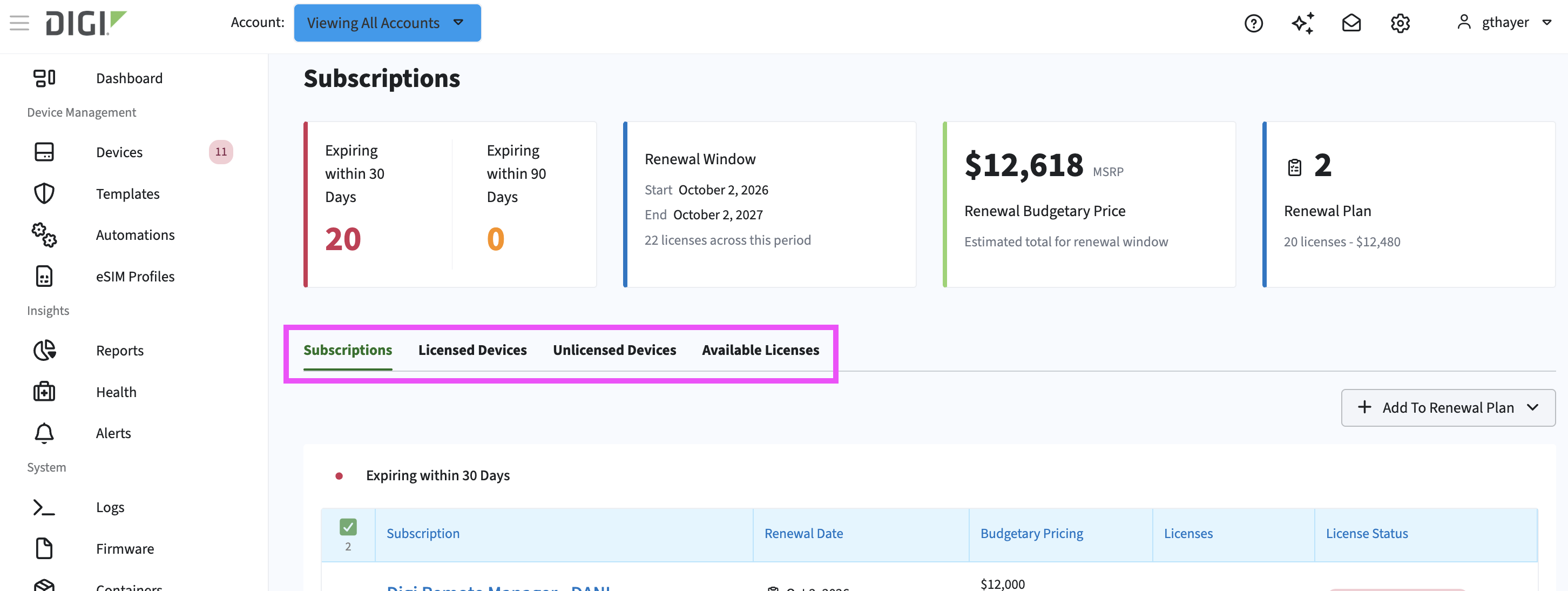
At the top of the Subscriptions page, four summary cards give you an at-a-glance view of all your subscriptions across all of the accounts you manage:

|
Card |
Description |
|---|---|
|
Expiring within 30 Days / Expiring within 90 Days |
The number of licenses expiring within each time period. Go to the Subscriptions tab to see the tables by the same names for details about each subscription, including their renewal date, budgetary pricing, licenses, and license status. |
|
Renewal Window |
The Start and End dates of the current renewal window, along with the number of licenses expiring during that period. |
|
Renewal Budgetary Price |
The estimated MSRP total to renew the licenses expiring within the renewal window. |
|
Renewal Plan |
The sum of the subscriptions you have added to the renewal plan. It also shows the sum total of estimated cost for all license renewals across those subscriptions. Clicking this card opens the Renewal Plan panel. |
Tabs
Below the cards, four tabs break down your account's subscriptions into categories:
|
Tab name |
Description |
|---|---|
|
The default view of the Subscriptions page in Digi Remote Manager. It categorizes your account's subscriptions into tables: In Grace Period, Expiring within 30 Days, Expiring within 90 Days, and/orActive Subscriptions. |
|
|
Displays a list of devices that currently have a device management license applied. The count of these devices is displayed directly above the table. You can filter the table by keyword and save any query by clicking the Save icon. |
|
|
Displays a list of devices registered to the account, but that do not have a device management license. The count of these devices is displayed directly above the table. You can filter the table by keyword and save any query by clicking the Save icon. Each row represents a single device and shows identification, model, and connectivity details, allowing you to identify devices that may require an entitlement. |
|
|
Displays a table of devices that shows a list of your subscriptions with their available license quantity and allows you to assign those licenses. Each row represents a subscription and shows how many of its licenses remain unassigned, when the subscription renews, and the status of the licenses it contains. |
Together, the cards give you a renewal-planning view (what's expiring, when, and roughly what it'll cost to renew), while the tabs give you an inventory view (which subscriptions they hold, and how those licenses are currently distributed across their devices). When working from this page you can, for example, spot licenses expiring soon on the cards, then use the tabs to find which specific devices are licensed, which aren't licensed, and which unused license capacity could be applied to cover them before renewal.