Add a subscription and its licenses to your renewal plan
The Add to Renewal Plan panel lets you select which licenses from one or more subscriptions are added to your renewal plan.
Note If you click the + Add to Renewal Plan button before selecting a subscription first, then you'll need click the checkbox of a subscription first and then click the button again.
To add subscription licenses to your renewal plan:
-
Log in to Digi Remote Manager.
-
In the main menu, click Subscriptions.
-
The Subscriptions page displays. The Subscriptions tab is selected by default.
-
In the Active Subscriptions list, click the checkbox for each subscription you want to add to the renewal plan.
-
Click the + Add to Renewal Plan button.
The Renewal Plan panel displays showing a card for each subscription you plan to renew.
Note A message will also display on the card if there are licenses in the plan that are not currently assigned to devices or users. These licenses can still be renewed.
-
Select a timeframe value to define the scope of the licenses you want to renew.
-
For Include licenses that are not currently assigned, click the checkbox to include these licenses.
-
Review the summary.
-
Click + Add to Renewal Plan.
The Renewal Plan panel displays showing the licenses you want to renew, grouped by subscription.
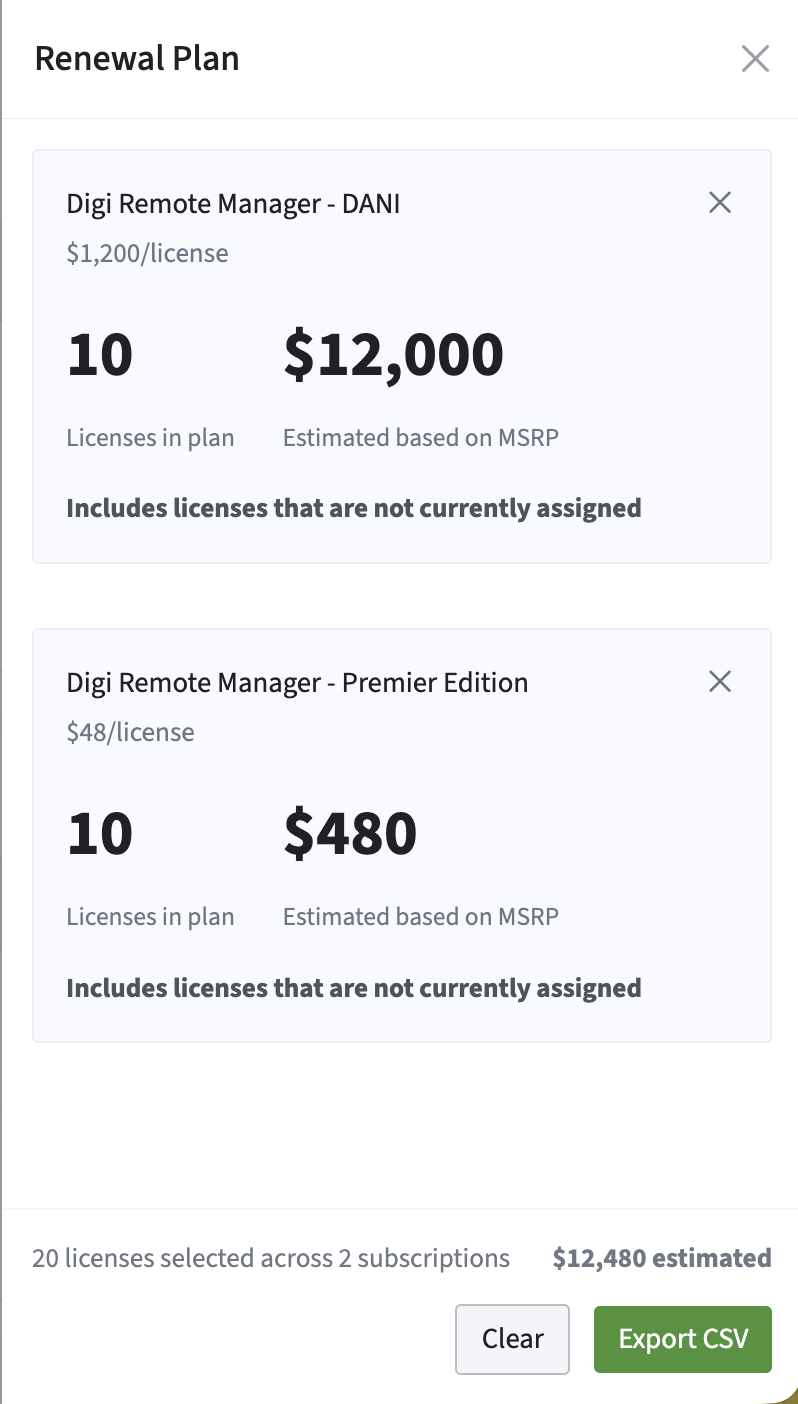
☑ The licenses are added to the renewal plan. From this panel, you can also click Clear to delete the subscriptions on the renewal plan and start over or export the plan to a CSV.