Assign a license
To a user
 From the Available Licenses tab.
-
Log in to Digi Remote Manager.
-
In the left navigation menu, click Subscriptions.
-
Click the Available Devices tab.
-
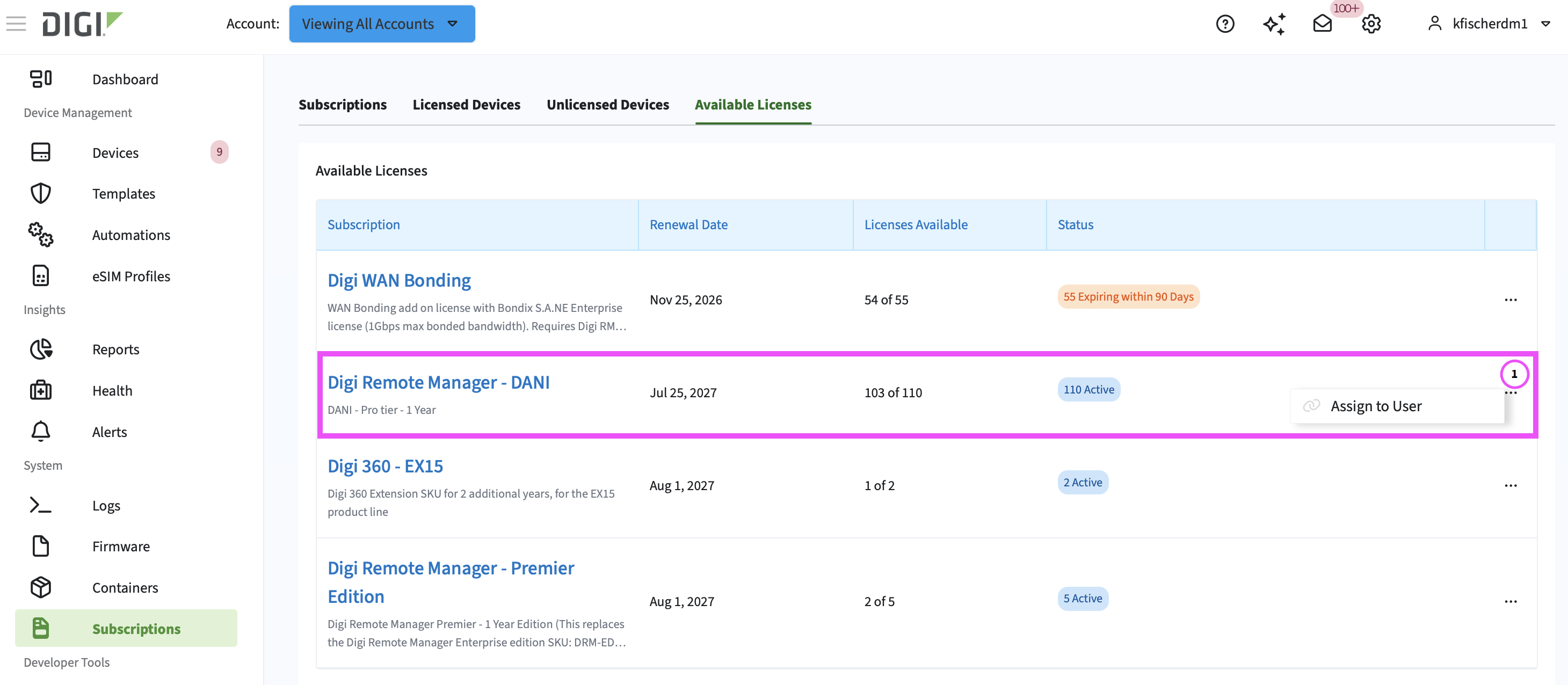
Click the ellipses (1) for the subscription you want to work with.
-
Click Assign to User.
The Select User Targets window displays.
-
In Select a contract, choose a contract that has licenses available to assign.
-
Scroll the list of users and select one or search for a user in the Search bar.
-
Click Assign License.
☑ The license is assigned to the user.
From a subscription details page.
-
Log in to Digi Remote Manager.
-
In the left navigation menu, click Subscriptions.
The Subscriptions page displays.
-
Scroll down and, on the Subscriptions tab, click the subscription you want to work with.
That subscription's details page displays.
-
For one user, click the ellipses of the one you want to work with, and then click Assign License.
For multiple users, select the checkboxes of the ones you want to work with, then click Actions > Assign Licenses.
The Assign License(s) window displays.

-
Assign a new license from the subscription with a later expiration date.
-
Click Assign Licenses.
To a device
From a subscription's details page
-
Log in to Digi Remote Manager.
-
In the left navigation menu, click Subscriptions.
-
Scroll down and, on the Subscriptions tab, click the subscription you want to work with.
That subscription's details page displays.
-
For one device, click the ellipses of the one you want to work with, and then click Assign License.
For multiple devices, select the checkboxes of the ones you want to work with, then click Actions > Assign Licenses.
-
In the Assign License(s) window that displays, select the contract that has available licenses for that subscription.
-
Click Assign Licenses.
þ The license(s) have been assigned.
From the Unlicensed tab
-
Log in to Digi Remote Manager.
-
In the left navigation menu, click Subscriptions.
-
Click the Unlicensed Devices tab.
-
In the Unlicensed Devices table, for one device, click the ellipses of the one you want to work with, and then click Assign License.
For multiple devices, select the checkboxes of the ones you want to work with, then click Actions > Assign Licenses.
-
In the Assign License(s) window that displays, select the contract that has available licenses for that subscription.
-
Click Assign Licenses.
þ The license(s) have been assigned.
From the Available Licenses tab
-
Log in to Digi Remote Manager.
-
In the left navigation menu, click Subscriptions.
-
Click the Available Licenses tab.
-
In the Available Licenses table, click the ellipses of the subscription you want to work with and then click Assign to Device.
-
In the Select Device Targets window that displays, select the contract that has available licenses for that subscription.
-
Search for the device in the Search bar or scroll the list and select the device.
-
Click Assign License.
þ The license have been assigned.