Enable an account to access the MCP server
Caution If this setting is disabled, contact Digi Technical Support and they will activate this setting for you. Once it is activated, then you can enable and disable this setting for your accounts as needed.
-
 Log in to Digi Remote Manager.
 -
In the header menu, click Account SettingsAccounts.
-
In the Accounts list, in the Accounts column, select the name of an account for which you want to enable MCP server access.
-
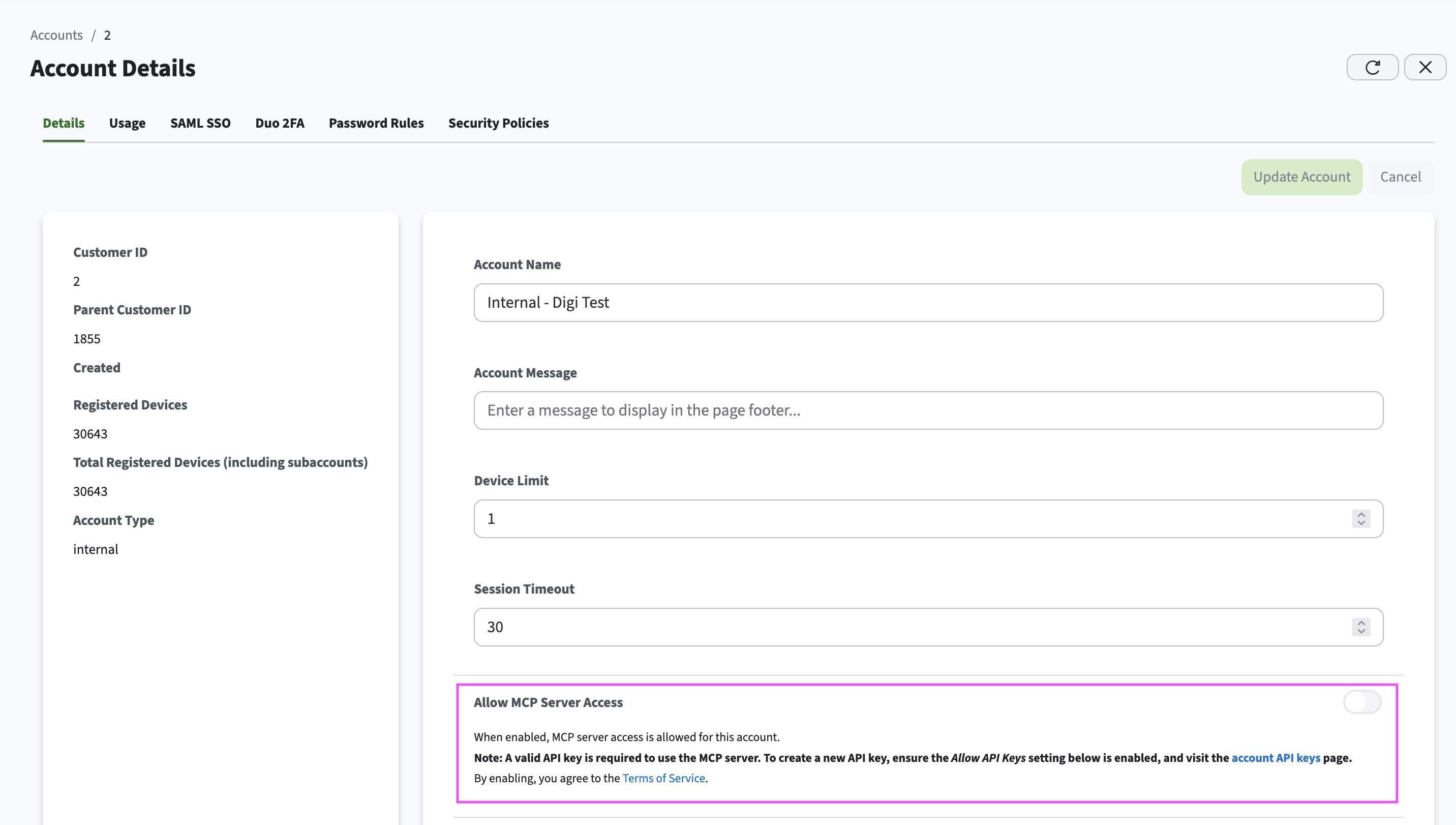
On the Details tab, enable the Allow MCP Server Access toggle.
The account now has access to the MCP server.