Add a step to an automation to update cellular modem firmware
This procedure guides you through creating a step and adding the corresponding commands to automate cellular modem firmware updates. You can add this automation step to a new or existing automation and include additional steps for other actions as needed. However, be mindful that adding a step(s) to an automation impacts the overall workflow and may affect how other steps in the automation are executed.
-
Click Automations.
-
Create a new automation or select one from the list.
The automation wizard displays.
Note If you are creating a new automation, you need to complete the Details tab first before proceeding to the Steps tab.
-
Click the Steps tab.
Note If you created a new automation, by default, the first step contains the Ping action. This step is not needed in the modem firmware update automation. You can delete it.
-
Click to open the Add Step menu.
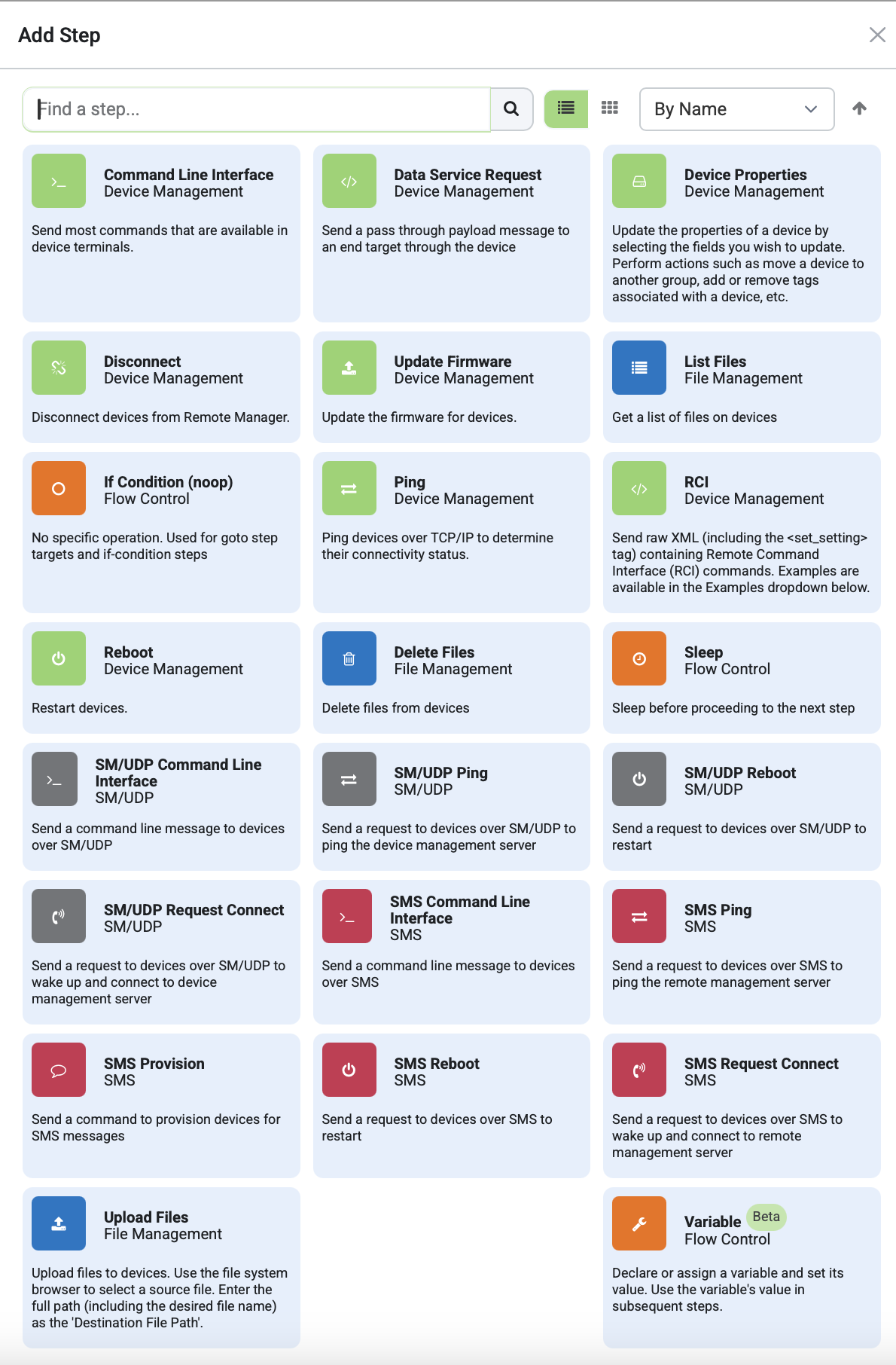
Tip If you are going to add an action to an automation you already had and it has a lot of steps, you have to scroll to the bottom of the page to see button.
-
Click Command Line Interface.
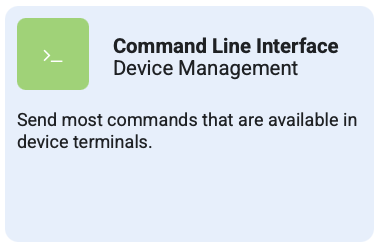
-
(Optional) Type a name that describes the action being performed. For example, Update modem firmware.
-
In Command Line Message(s), choose one of the following commands:
-
For Timeout, set to 300 seconds.
A modem firmware update typically takes about 5 minutes. You can adjust the timeout setting as needed to accommodate your specific requirements.
The modem firmware for all carriers will be updated when the automation is run.