Create your Digi Remote Manager account
If you have not yet created your Digi Remote Manager account, then this process will guide you through the steps to create one.
Tip If an account already exists for the company, log in to Digi Remote Manager and then register the new device(s).
 Gather information.
-
Device identifier and default device password for a never-registered Digi 360 device.
Tip You can find this information on the product label sticker attached to the bottom of your device or on the extra sticker included in the device packaging. Providing these details helps confirm that your device is associated with your account when it is registered.
-
Email address of the person responsible for receiving Digi Remote Manager communications.
Create the new account.
Tip The following procedure outlines how to use the camera on your laptop, tablet, or phone to scan the QR code on our device's product label sticker to populate the MAC Address and Default Device Identifier fields in the wizard. Alternatively, you can manually type this information. If you do type this information, note that if your device has both a MAC address and IMEI number, use the MAC address.
-
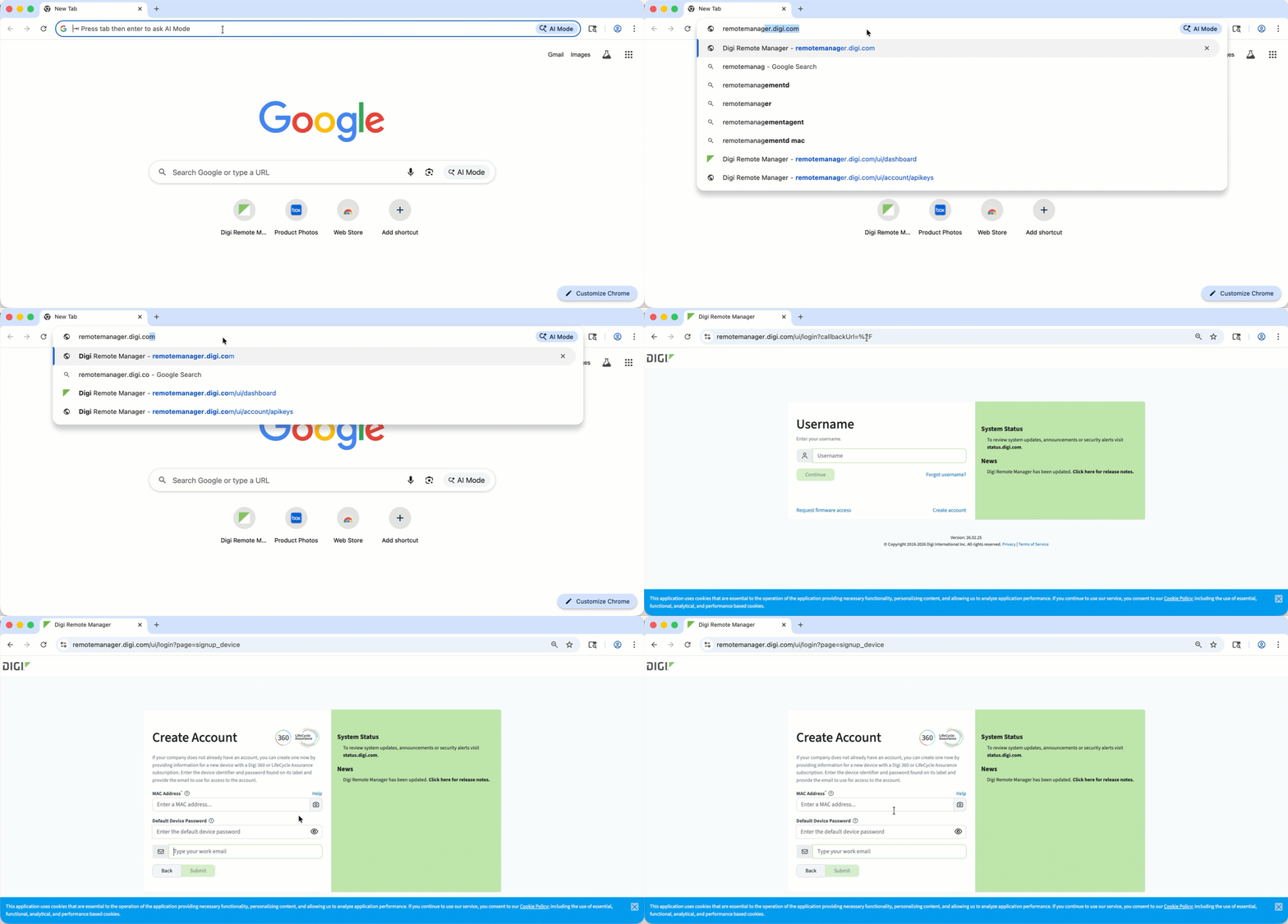
In a web browser, navigate to remotemanager.digi.com.
-
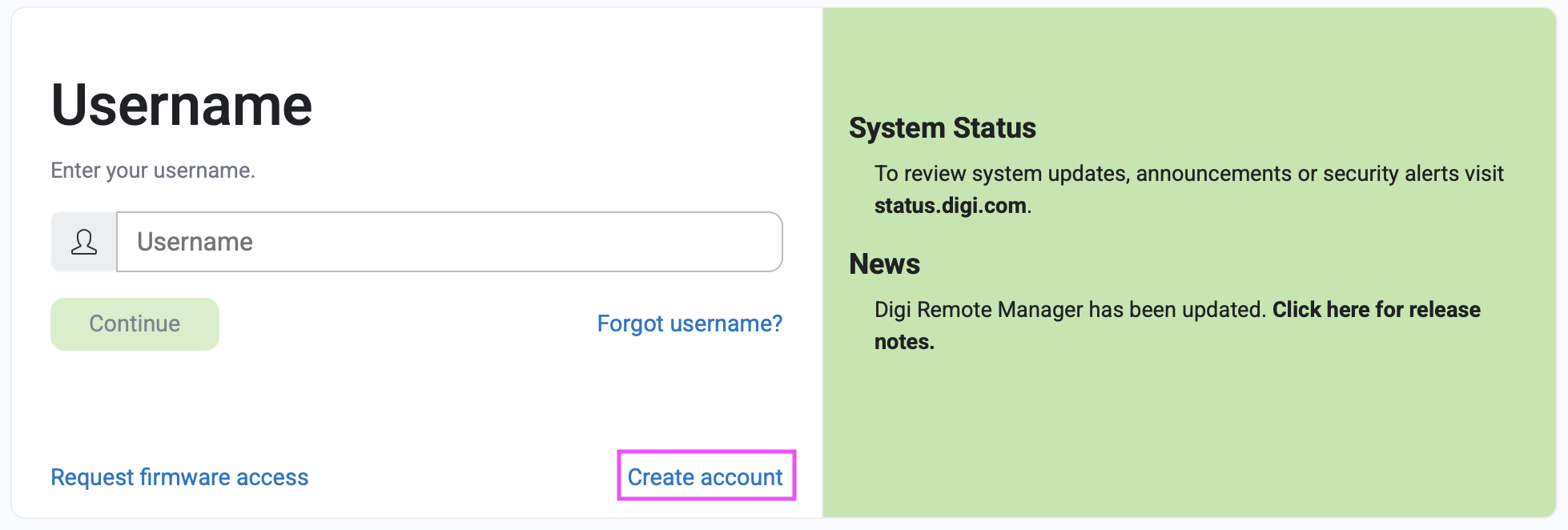
On the login page that displays, click Create account.
-
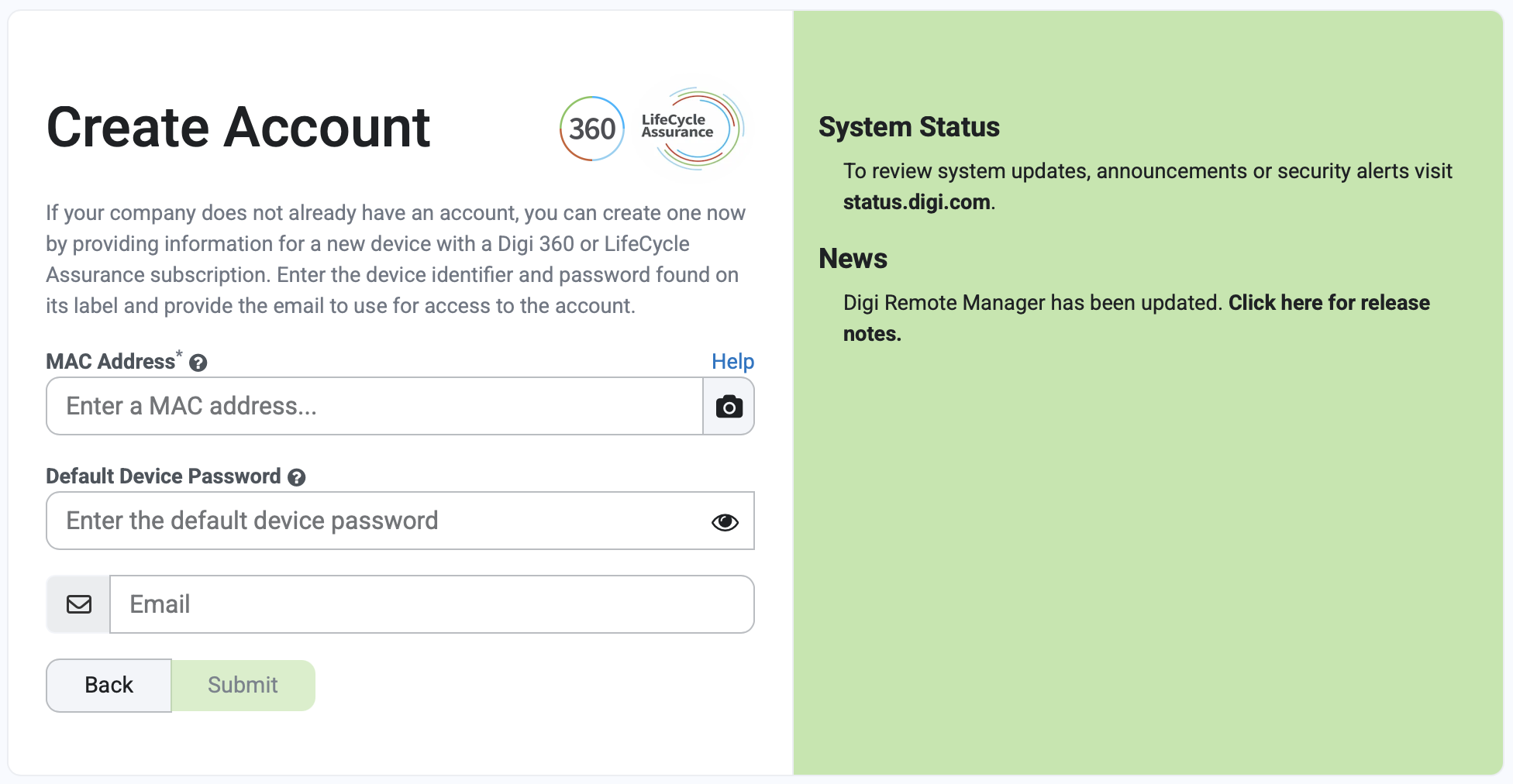
On the Create Account page that displays, click .
-
Hold your device or the extra sticker in view of the camera and wait for the MAC Address and Default Device Identifier fields to populate.
-
Type the email address of the person responsible for receiving Digi Remote Manager communications.
-
Click Submit.
What's next? Activate your account via the email link.