Trigger a Config Reset in the device Web UI
Note The reset behavior, if configured, will determine what type of erase occurs (Config Reset, Keep Known-Working APNs, or Factory Reset) so if you need to trigger a Config Reset, make sure to check if the reset behavior has been configured first and what mode it is set to use. You may need to change the mode before continuing.
-
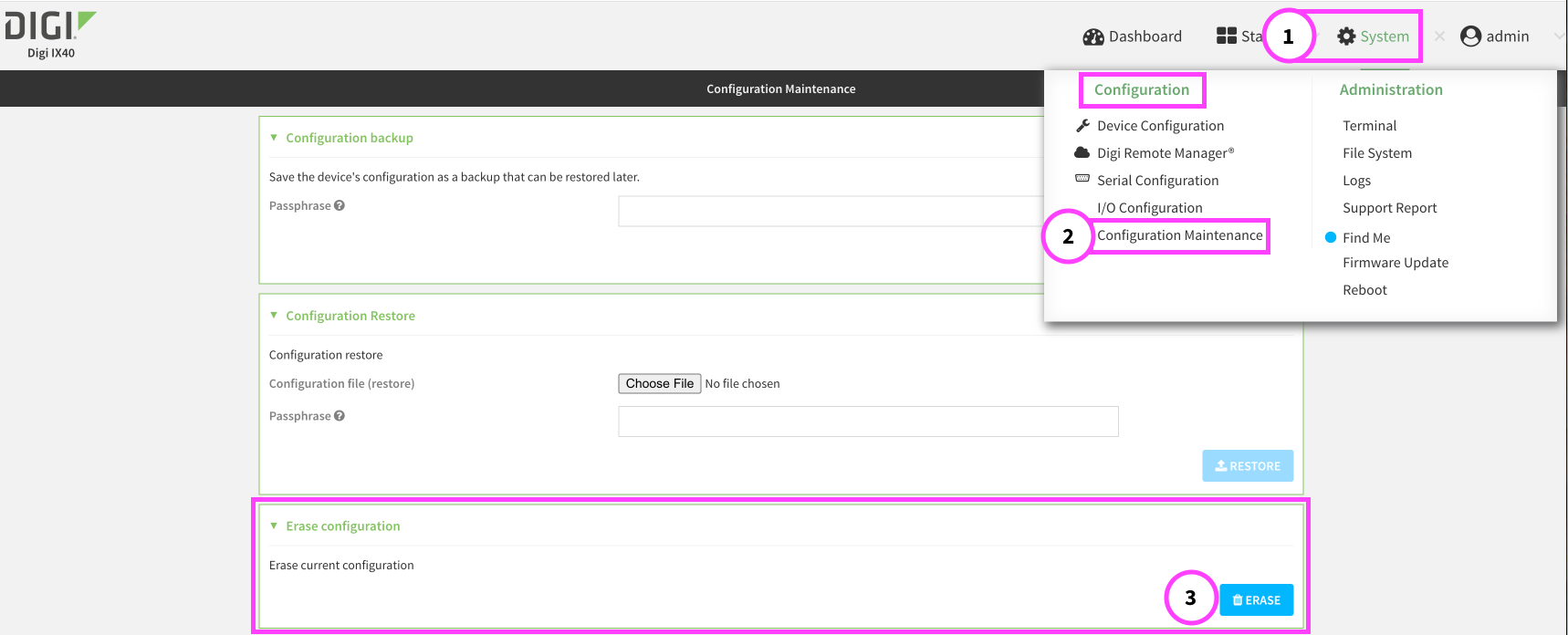
In the main menu, click System.
-
Click Configuration Maintenance.
-
On the Configuration Maintenance page that displays, in the Erase configuration section, click Erase.
The router reboots automatically.
-
All custom settings, user files, event/system logs, and user-configured/known-working APNs are deleted.
-
Generated keys and certificates remain.
The router will connect to the network
-
-
(Optional) Reset the unique admin password, if needed.
Tip Triggering a Config reset reverts the unique admin password you may have configured back to the factory-assigned default admin password. If you are trying to log in to the router locally after the Config reset is complete, you will have to use the factory-assigned default admin password, which is located on the product label sticker on the bottom of the router or the extra product label sticker. To configure a unique admin password, see to Change the factory-assigned administrator password for a device to a unique password.
 PDF
PDF


